

How to Add Music to Snapchat: Songs, Custom Sounds and More
Add Music to Snapchat and improve every Snap with a musical touch. Music makes photos and videos feel better. It adds emotions, energy, and personal style.

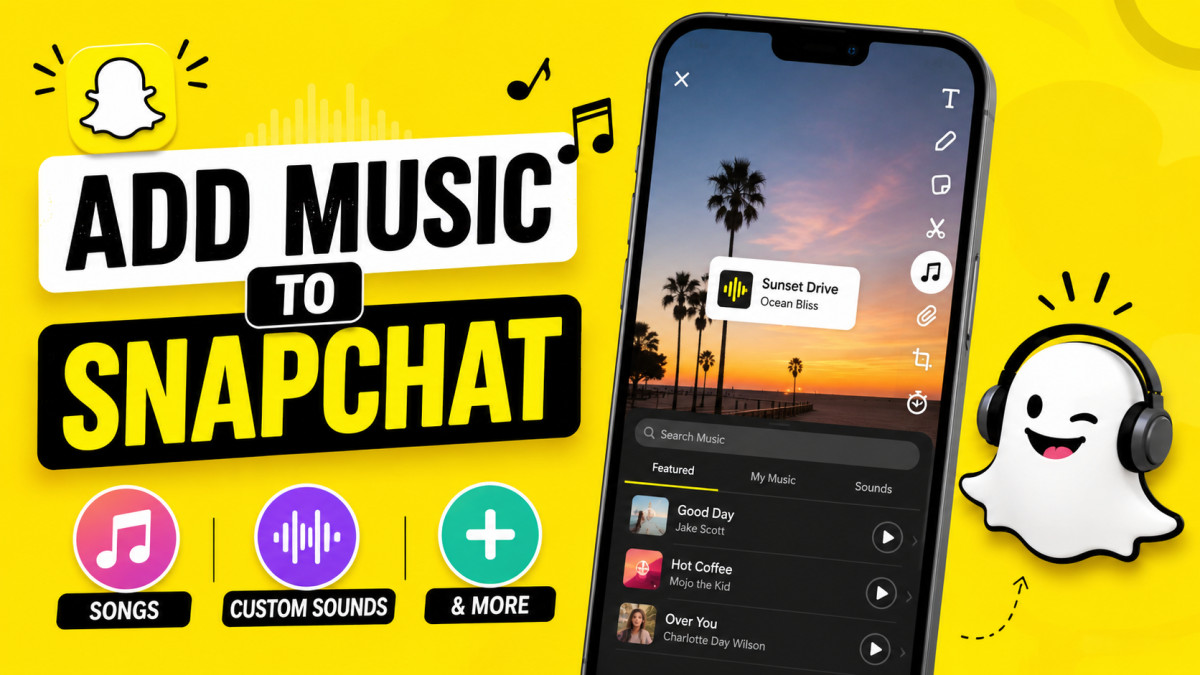
Snapchat Your Soundtrack: How to Add Music to Snapchat and Custom Sounds
Snapchat has grown from simple photo sharing into a hub for creative storytelling. What is a story without a great soundtrack? Whether you want to lip-sync to a hit song, add a funny sound effect to a pet video, or create an audio identity for your brand, Snapchat gives you the tools you need. Knowing how to add music to Snapchat is a key skill for any creator. When you pair the right audio with your visuals, you turn a quick clip into a moment people actually want to watch. This guide breaks down how to use these audio tools to make your Snaps stand out.
Adding sound to your content is about more than just entertainment. It is a powerful way to hold attention. Research shows that clips with audio keep viewers watching longer and encourage more interaction. The built-in music library and sound tools on Snapchat are easy to use. They allow you to turn simple photos and videos into a full multimedia experience without needing editing skills or extra software.
Integrate Popular Songs into Your Snaps
Snapchat makes it easy to add licensed, popular music directly to your Snaps. This is the best way to keep your content fresh and relevant. Using tracks from the official library also ensures that you do not run into copyright issues that can happen when you use outside audio files.
Accessing Snapchat's Music Library
To start, open the Snapchat camera. Before you snap your photo or video, look for the "Sounds" button on the right side of the screen. It looks like a music note icon. Tap this icon to open the library. Here, you will see a list of curated categories.
You can browse "Featured" tracks, search for new releases, or look through specific genres. Snapchat updates this list often, so you can find current hits or classic songs. Once you find a track you like, tap it to hear a preview. If it fits your video, select it to attach it to your Snap.
Selecting the Perfect Song Snippet
Once you pick a song, you need to find the right part of it. A full song might be three minutes long, but your Snap only needs a few seconds to make an impact. Use the slider at the bottom of the screen to choose the specific 15-second segment that works best.
Think about your visual content. If your video is fast-paced, pick a high-energy part of the chorus. If it is a slower, artistic shot, find a melodic intro. The goal is to match the beat to your video's movement. You can move the waveform back and forth until the music hits the right moment just as your video starts.
Customizing Music Appearance and Playback
After you select your audio, you can decide how it shows up on your Snap. A sticker will appear on your screen that shows the song title and the artist. If you want a cleaner look, you can move this sticker to the edge of the frame or even pinch it to make it very small.
You can also adjust the playback. If you are recording a video, the music will play while you film. You can also add music to a photo after you take it. Remember to check the volume levels. You want the music to support your video, not overpower it if you are talking over the track.
Elevate Snaps with Custom Sound Effects and Voiceovers
Sometimes, a song is not what you need. You might need a funny sound effect for a prank or a voiceover to explain a tutorial. Snapchat provides options to create custom audio elements directly in the app.
Recording and Adding Your Own Voiceovers
A voiceover adds a personal touch to your Snaps. It helps you tell a story, give instructions, or share your thoughts on what is happening on screen. To record, take your photo or video first. On the right-hand menu, look for the "Audio" icon or the "Voiceover" button.
Tap the record button and speak clearly. Take a breath and make sure your room is quiet to avoid background noise. If you mess up, you can delete the take and try again. A good voiceover is energetic and matches the tone of your visual story. If you are showing off a recipe, be enthusiastic. If you are sharing a sad moment, keep your tone soft and steady.
Utilizing Snapchat's Built-in Sound Effects Library
The "Sounds" menu is not just for songs. It also contains a library of sound effects. You can find everything from cartoon boings and laughter to crickets chirping or sirens. These effects are great for emphasis.
If you show a friend slipping on a banana peel, a comical sound effect makes it funnier. If you are announcing a surprise, a drumroll effect creates tension. To add these, go to the "Sounds" icon, select the "Sound Effects" tab, and pick the one that fits your clip. You can layer these effects on top of your video after you capture it.
Advanced Techniques for Music and Sound Integration
Once you are comfortable with the basics, you can start using audio to drive the narrative of your Snaps. This is where you move from simple posts to high-quality content.
Synchronizing Audio with Visual Elements
The best Snaps feel tight. This means the visual cuts happen exactly when the music changes. If you are editing a montage of your vacation, try to make each photo switch on the beat of the song. It makes the viewing experience smoother and more professional.
You can also use sound effects to mark actions. If you are doing a transition where you snap your fingers and the scene changes, add a "snap" or "pop" sound effect at that exact moment. It tricks the brain into feeling like the transition was more dramatic.
Layering Sounds for Richer Audio Experiences
You do not have to pick just one audio source. You can often combine a voiceover with a soft background track. Start by recording your voice. Then, add a music track from the library. When you have both, look for the volume controls. Turn the music volume down so it sits behind your voice. This makes you sound like a pro who knows how to mix audio. It adds depth to your content and keeps people engaged because the audio is more textured.
Leveraging Sound for Brand Storytelling
If you are building a personal brand or a business, sound helps people recognize your content. Pick a specific style of music that matches your vibe and use it across your stories. If you run a fitness account, use upbeat, high-energy music consistently. Your followers will start to associate that sound with your brand. It creates a habit; when they hear that type of music, they think of you. Consistency in your audio choices is just as important as consistency in your video style.
Troubleshooting Common Music and Sound Issues
Sometimes, things do not work the way you want. Audio can be finicky. Here is how to fix the most common problems so you can keep creating without a headache.
Music Licensing and Copyright Considerations
Snapchat’s library is safe to use. They have deals with major labels. However, if you are uploading your own recorded audio, be careful. Do not include copyrighted music playing in the background of your video, such as a song playing on a radio in a store. If you do, Snapchat might mute your video or remove it entirely. Stick to the library for music and record your own original audio for everything else.
Audio Not Playing or Syncing Correctly
If your audio is silent, check your phone's volume first. It sounds obvious, but it happens to everyone. If the volume is up, check the app permissions. Make sure Snapchat has access to your microphone in your phone's settings. If the audio is not syncing, save your Snap as a draft, close the app completely, and restart it. This usually clears out small glitches in the cache.
Finding Specific Songs or Sounds
If you cannot find a specific song, use the search bar within the Sounds library. Try searching by artist or album. If it is still not there, the song might not be licensed for use on the platform. In this case, do not try to find a workaround. Instead, search for a similar mood or genre. Often, you will find a different track that fits the vibe of your video just as well.
The Impact of Audio on Snapchat Engagement
Why go through the effort of adding music and sound? Because it works. Data consistently shows that audio is a massive factor in whether someone watches a video to the end or keeps scrolling.
Increasing Watch Time and Completion Rates
Silence can be awkward. When a user scrolls past a video, a song or a clear voiceover grabs their attention faster than an image alone. It forces them to stop and listen. Once they stop, they are more likely to finish the video. High completion rates tell the app that your content is good, which can help it show up in more people's feeds.
Enhancing Emotional Connection and Virality
Music changes the mood instantly. A sad video becomes heartbreaking with a piano track. A funny video becomes hilarious with a cartoon sound effect. You use audio to tell the viewer how to feel. When you successfully guide their emotions, they are more likely to share your Snap with friends. This is often the spark that helps content go viral.
Conclusion: Make Your Snaps Sing with Sound
Adding audio to your Snaps is one of the easiest ways to improve your content. You have a massive library of songs and sound effects at your fingertips. By mastering the basics, like choosing the right song snippet and recording clean voiceovers, you give yourself more ways to connect with your audience.
Here are the key takeaways to remember:
- Use the "Sounds" menu to browse both popular tracks and funny sound effects.
- Always edit your music snippet to match the beat of your video.
- Keep your music volume lower than your voice when doing a voiceover.
- Stay consistent with your sound choices to build a recognizable brand style.
- If you face issues, check your volume settings and restart the app.
Do not be afraid to experiment. Play with different sounds, layer them, and see what gets a reaction from your friends or followers. Your unique audio style is waiting to be found, so start creating today.
What's Your Reaction?
 Like
0
Like
0
 Dislike
0
Dislike
0
 Love
0
Love
0
 Funny
0
Funny
0
 Wow
0
Wow
0
 Sad
0
Sad
0
 Angry
0
Angry
0










Comments (0)